What NibVault can do
A practical guide to the whole vault.
NibVault can be a simple collection list or a detailed working record. These are the main jobs it handles and the shortest route through each one.
01 · Build the collection
Start with the catalogue or make the record your own.
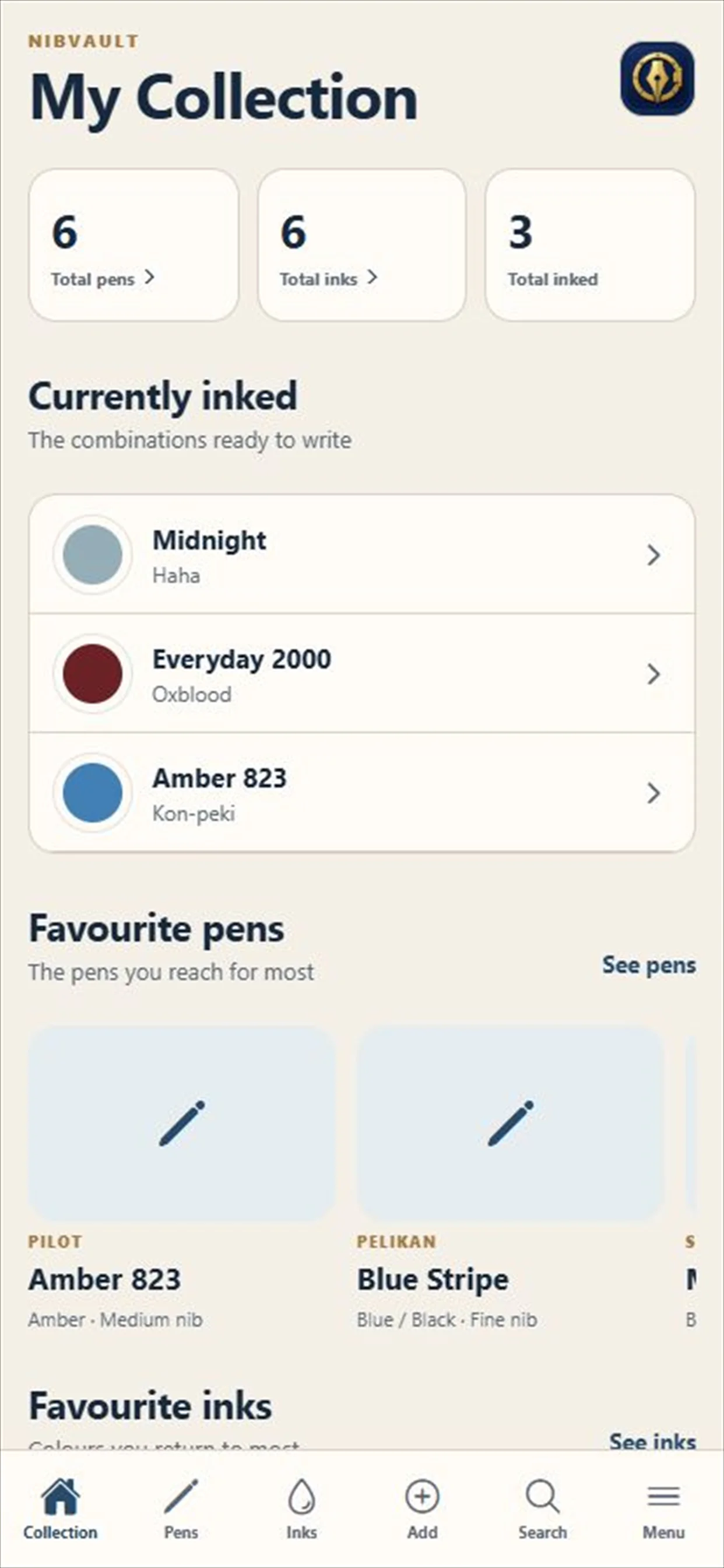
Choose a known pen or ink to prefill useful specifications, or create a completely custom record when the catalogue does not have what you need.
- Choose Add a pen or Add an ink.
- Pick a brand, product and version from the catalogue, or continue with a custom entry.
- Add ownership details, photographs, notes, value, storage location and a private rating.
02 · Fills and pairings
Remember more than what is currently inked.
A fill links one of your pens to one of your inks. Over time, that becomes a useful record of combinations you enjoyed and those you would not repeat.
- Open a pen and choose Ink this pen.
- Select an ink, record the amount used and add the fill date.
- Rate that specific pairing and keep notes about flow, colour and writing feel.
03 · Care and rotation
Keep maintenance history where it belongs.
Cleaning, repairs, nib work and professional servicing stay attached to the pen, with reminders for work you want to do later.
- Open Care or the Care section inside a pen record.
- Record completed work, costs, condition changes and notes.
- Schedule a local Cleaning or Rotation reminder for a date and time you choose.
04 · Physical QR labels
Give the box, drawer or case a direct link to its record.
Every owned pen and ink can have a private QR label. Print one label or prepare an A4 sheet in small, medium or large sizes.
- Open an item’s label, or choose Physical labels to prepare several at once.
- Print directly or export an A4 PDF with complete labels kept inside each page.
- Scan your own label for quick actions. Another collector can review the product and add a clean copy to their collection or wishlist.
05 · Wishlist and grails
Plan the version you would genuinely buy.
Wishlist records separate known product facts from your ideal version, so fixed specifications do not get confused with personal preferences.
- Choose a brand, then a pen model or ink, followed by the closest catalogue version.
- Refine preferences such as colour, nib size, nib material, edition or release year.
- Add a target price, listing link and notes, then mark long-term targets as grails if you wish.
06 · Storage
Find where the item actually lives.
Create nested places that match the way your collection is stored, from a cabinet down to a particular drawer, tray or box.
- Open Data, backup & sync and create the top-level place.
- Add shelves, drawers, cases or boxes beneath it to build a readable path.
- Assign a location from the pen or ink record and use item counts to review what is stored there.
07 · Sync, backup and spreadsheets
Keep control of where the collection goes.
NibVault stays local-first while offering private ecosystem sync and portable files for safety, migration and established collections.
- Use optional iCloud sync between your Apple devices or private Google Drive app storage between Android devices.
- Create a complete .nibvault backup, including photographs and history, before major changes or device moves.
- Import CSV or Excel files with column mapping, or export selected sections for use elsewhere.
08 · Share and discover
Get to the right record quickly, then share only what you choose.
Search the collection, use device shortcuts, open Apple Spotlight results and create links, PDFs or social cards from individual records.
- Search by the details you remember, or use a home-screen shortcut for adding, scanning or searching.
- On iPhone and iPad, open an owned pen or ink from private on-device Spotlight results.
- Choose the details included in a PDF or social card, or send an importable record link.
Choose your device
One collection companion. Two platforms.
The core collection tools are available on Android, iPhone and iPad. System integrations follow the platform you use.
Android phones & tablets
Google Drive sync between your Android devices, a home screen widget for current rotation and upcoming care, QR label scanning, local reminders, adaptive layouts and app-icon shortcuts on supported launchers.
iPhone & iPad
iCloud sync between Apple devices. Apple integrations include Spotlight, Siri and Shortcuts, packaging recognition and supported Lock Screen, Control Centre and Action button controls.
Personalise your vault
Six themes: Cream, White, Sakura, NibVault, Black and Garnet. Choose separate light and dark themes, follow device appearance, and select one of six app icons or match your theme.
Move between platforms
Google Drive and iCloud sync remain separate. Use a complete NibVault backup to transfer your collection, photographs and history between Android and iOS.
Widgets and shortcuts depend on your device and launcher. Care notifications require permission. Packaging recognition is currently available on iPhone and iPad only.

Made to remain readable
Detailed without becoming a spreadsheet on a phone.
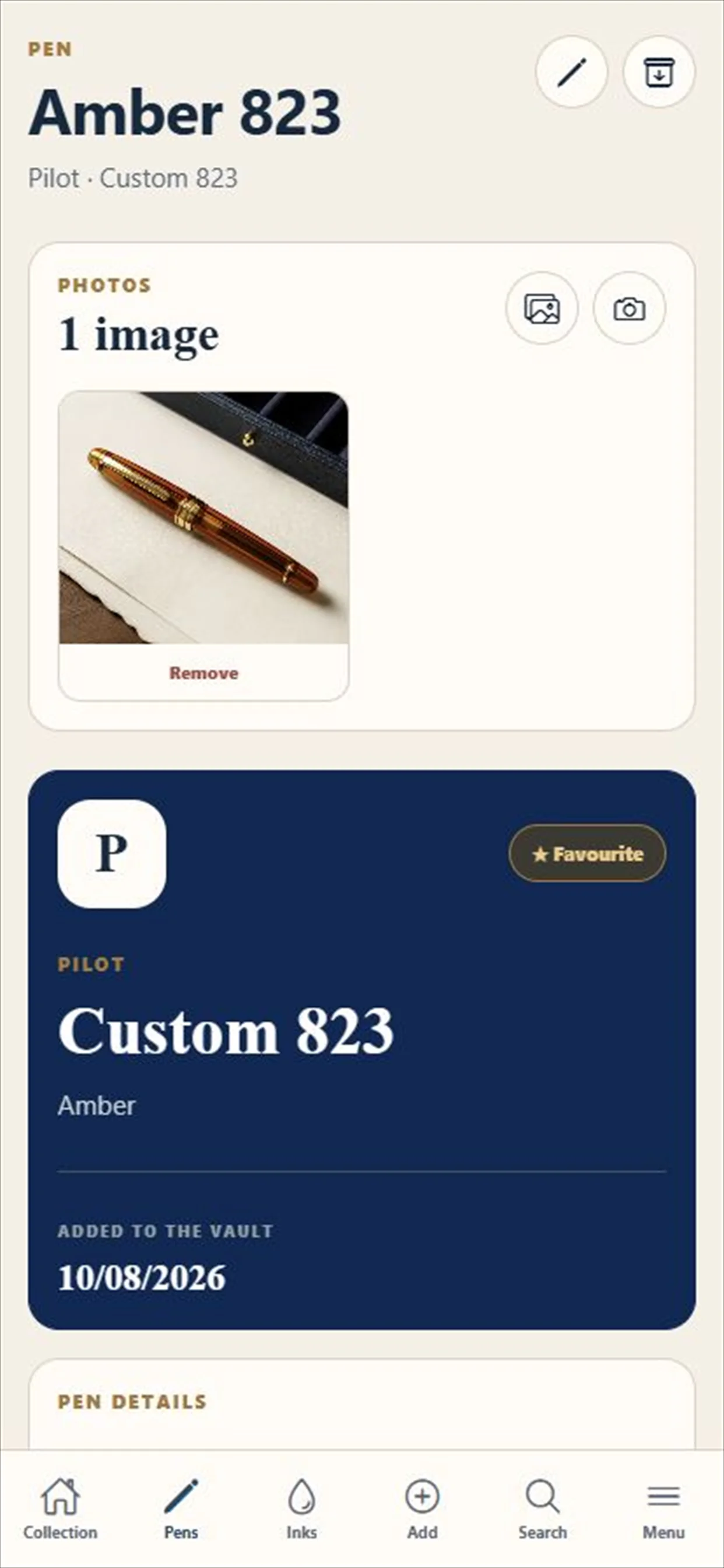
Records use focused sections, clear summaries and responsive layouts. NibVault supports six colour themes, six app icons and seven languages. Apple accessibility features include VoiceOver, Voice Control, Larger Text and Reduced Motion.
Get NibVault
Available on the App Store for iPhone and iPad, and on Google Play for Android phones and tablets.